

The extension syncs automatically in the background. You don’t need to do anything to keep it running, but knowing how it works makes it much easier to spot when something’s off.
Two lanes, one scheduler
The extension runs on two background lanes, the same two you met in How syncing works: Boost carries what is happening right now, Backfill carries history and housekeeping. Both are driven by Magento’s standard scheduler and both run every minute; priority is the only difference between them.
bin/magento cron:runEach lane runs in its own cron group, so a host that only runs Magento’s default group would start just half the engine. If history seems to wait while live activity flows, or the other way round, ask your host to confirm Magento’s cron runs all groups; the Cron Monitor shows each group’s state.
Why some things sync before others
Work drains in priority order, not arrival order. Live-shopper events (a new order, a cart update, an unsubscribe) jump the line. Your historical product catalog and older orders come last.
So if you place a test order and it appears in Mailchimp within a minute while thousands of older catalog entries are still making their way through Backfill: that’s correct behavior, not a fault. The extension is protecting your live store experience first.
After a fresh connection, the Backfill lane works through your full history at a steady pace. How long depends on your catalog and order volume; hours is normal for large stores. Live activity syncs the whole time.
Where to watch the work
The Queue Monitor is the live window onto both lanes: every record on its way to Mailchimp, its type and its status.
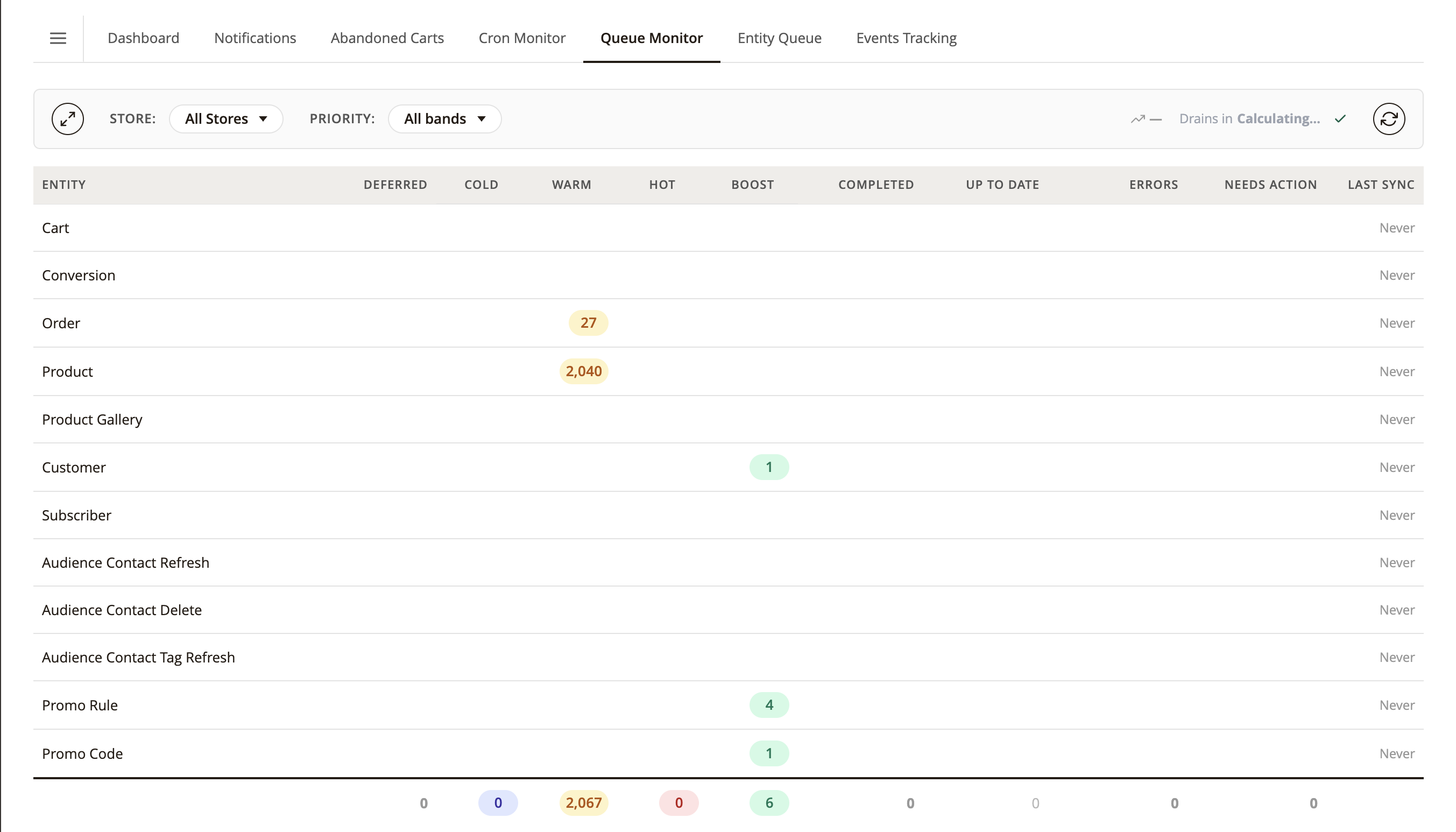
The full menu of monitoring surfaces, from the Dashboard’s alerts to the API Log, lives on Keep an eye on your sync.
Questions along the way? Troubleshooting has the answers, and ebizmarts support is one email away.